Windows 11 buying guide
Before you pull out your old SSD, decide what you want the new one to do on its first boot. A fresh Windows install with your documents back? Windows Backup can help. Your existing installation, desktop apps and settings back where you left them? Plan for a full system image or a clone.
The short answer
Don’t buy imaging software just to move a few folders. Consider it if rebuilding your exact setup would cost you a weekend. Even if you clone the drive, keep a separate copy of the files you can’t replace.
Pick what needs to come back
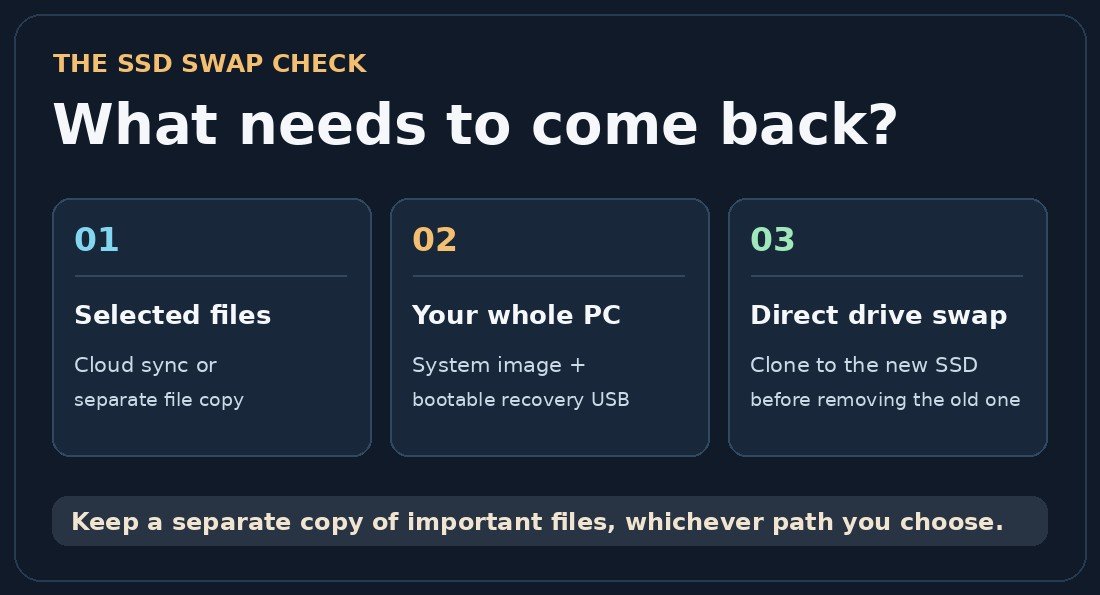
Open the SSD swap decision graphic
Fresh start
Windows Backup
Included with Windows
Use it if you’re fine reinstalling desktop apps. It can sync selected folders to OneDrive and help restore supported settings and app pins during setup. It does not reinstall your old Windows system. Confirm your account has enough storage and copy anything it doesn’t cover.
Keep the setup
System image or clone
Check your SSD maker’s tools first
An image is a snapshot you can restore later; a clone copies straight onto another drive. O&O DiskImage 23 Premium supports both, plus bootable recovery media. Its trial restricts cloning, so don’t count on the trial to finish a drive swap.
Image or clone? It depends on how you’ll recover
| Method | Use it when | You’ll need |
|---|---|---|
| File backup | You’re happy starting with a fresh installation. | A verified copy of the folders you care about and installers for the apps you’ll reinstall. |
| System image | You want a stored snapshot of your installation to restore onto a replacement drive. | A separate drive with room for the image and bootable recovery media that can see it. |
| Drive clone | The old SSD works and you want to migrate directly. | Both drives connected, using a compatible slot or enclosure. Verify the target: cloning overwrites it. |
Before you open the laptop
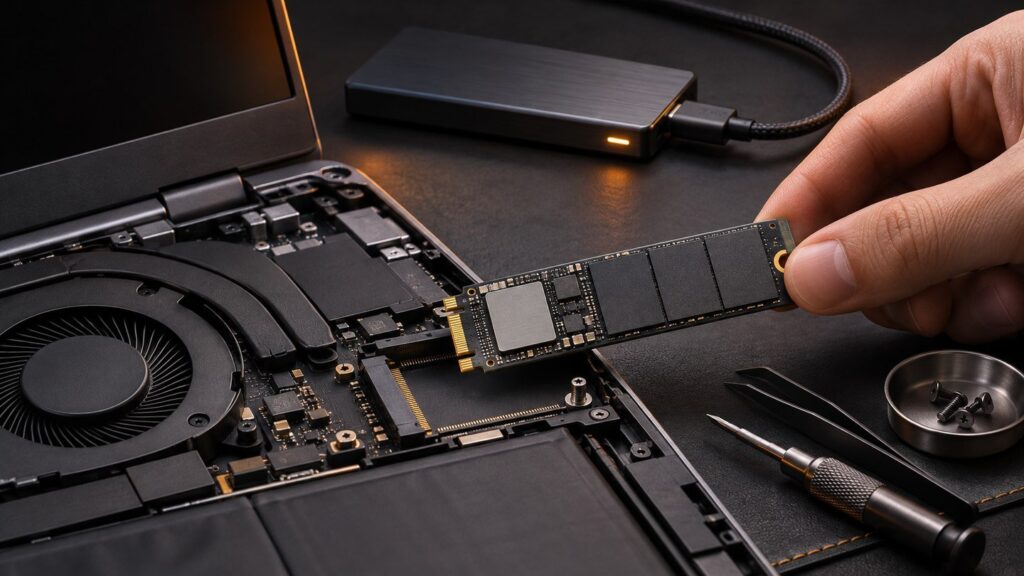
- Confirm which SSD fits. Check the laptop’s service guide for the interface and physical size. “M.2” alone doesn’t tell you whether your slot takes a SATA or NVMe drive.
- Open a few backed-up files. Check what’s actually on the backup, especially anything outside your synced folders. If you’re using a system image, boot the recovery USB and confirm it sees the image without starting a restore.
- Find your recovery key. If BitLocker or device encryption is on, confirm you can access the BitLocker recovery key from another device. Keep the original SSD intact until the replacement boots and your files and apps check out.
Our verdict
Use Windows Backup and a separate file copy if you want a clean start. For a direct swap, check whether your new SSD includes a compatible migration tool before paying. Consider a dedicated imager if you want a restorable copy of a setup you can’t easily rebuild. This is a buying guide based on vendor documentation, not a hands-on speed or reliability test.
Related reading
Choosing a drive to hold your backup? See our portable SSD comparison. If you’re weighing a Windows edition upgrade at the same time, read which Windows 11 Pro license fits your PC.
Sources: Microsoft Windows Backup, Microsoft BitLocker recovery, and O&O DiskImage 23 cloning and trial limits.